|
|||||||||||||
 |
|||||||||||||
Microsoft GIF Animator Example for Creating RF Cafe Advertising Banners |
|||||||||||||
|
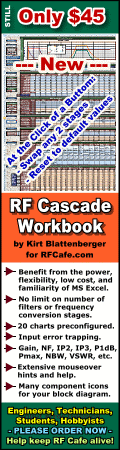
The animated GIF (AGIF) on the left (below) was created using Microsoft's "GIF Animator" freeware. Four views are provided with a delay between each view. Rather than simply combining four separate, full-size images, only the parts that change each time are used. As you can see from the individual files sizes, the final AGIF is much smaller in file size than if four full-size GIF images had been used instead (it would have been ~128 kBytes).
<click for larger version> This AGIF is composed of 4 images. The base image is full size (120x600 px). It displays initially by itself for 1 second. Then, image #2 displays for 1.8 seconds. Note that it is 116x130 px and is positioned at x=2 px and y=5 px. Image #3 is 114x98 px and is positioned at x=3 px and y=150 px, and displays for 1.8 seconds. Image #4 is 113x98 px and is positioned at x=3 px and y=260 px, and displays for 1 second (its parameter screen is not shown in screen capture). Then, the whole cycle repeats endlessly. Note that the three small images are superimposed over the base image using the "Transparency" check box, where the white background color for those three GIF images has been defined as transparent. Posted July 16, 2015 |
|||||||||||||
 |
|||||||||||||
|
|||||||||||||

|
||||||||||||||||||||||||||||||||||||