RF Workbench - System Screen |
|
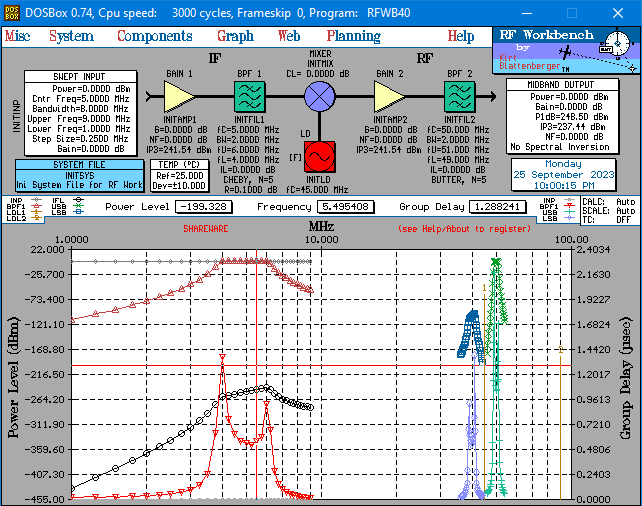
This is the System Screen for the RF Workbench software. It represents a basic component lineup for a frequency conversion stage. Each of the triangular yellow icons represents a mini cascade of five components (passive or active), the square green icons represent a filter, the round blue icon represents a mixer. and the square red icon represents a local oscillator. The relative positions of the input amplifier/filter can be swapped (filter first), as can the output amplifier/filter positions. To edit each component, just click on the icon and a window will open with all the necessary fields. Every input is fully tested for validity so that erroneous data cannot be entered. The white rectangle at the input represents all of the input parameters, and can be edited by clicking on it. If desired, the output data of a previous stage (as with a multiple frequency conversion) can be used rather than simply sweeping the input across a frequency range. All necessary mixer parameters, including the spur table, is set by clicking on the mixer icon. Mixer spur table files can be loaded from the editor screen. The local Oscillator (LO) can be either a fixed or swept frequency, and its power level set in its editing window. Once all the parameters are set, then out data is viewed in the graph at the bottom. All parameters can be individually turned on or off. Graph scale can be set manually, defined with the mouse, or allowed to auto-scale. Clicking on the white Midband Output rectangle opens a wind with a tabulated list of output numerical values. Return to the main RF Workbench webpage.
Note: An error has been reported in the Calculate Spur Level auxiliary window where the gains of the Gain 1 and Gain 2 components is not included in the spur product power. You can get the correct answer by manually adding those two gain values. |